Can you auto drive in GTA 6? How to turn it on
Can you auto drive in GTA 6? Yes, on PS5 and Xbox Series X|S. Set a waypoint, enter a vehicle, open Cinematic Camera and hold Circle or B at the prompt.
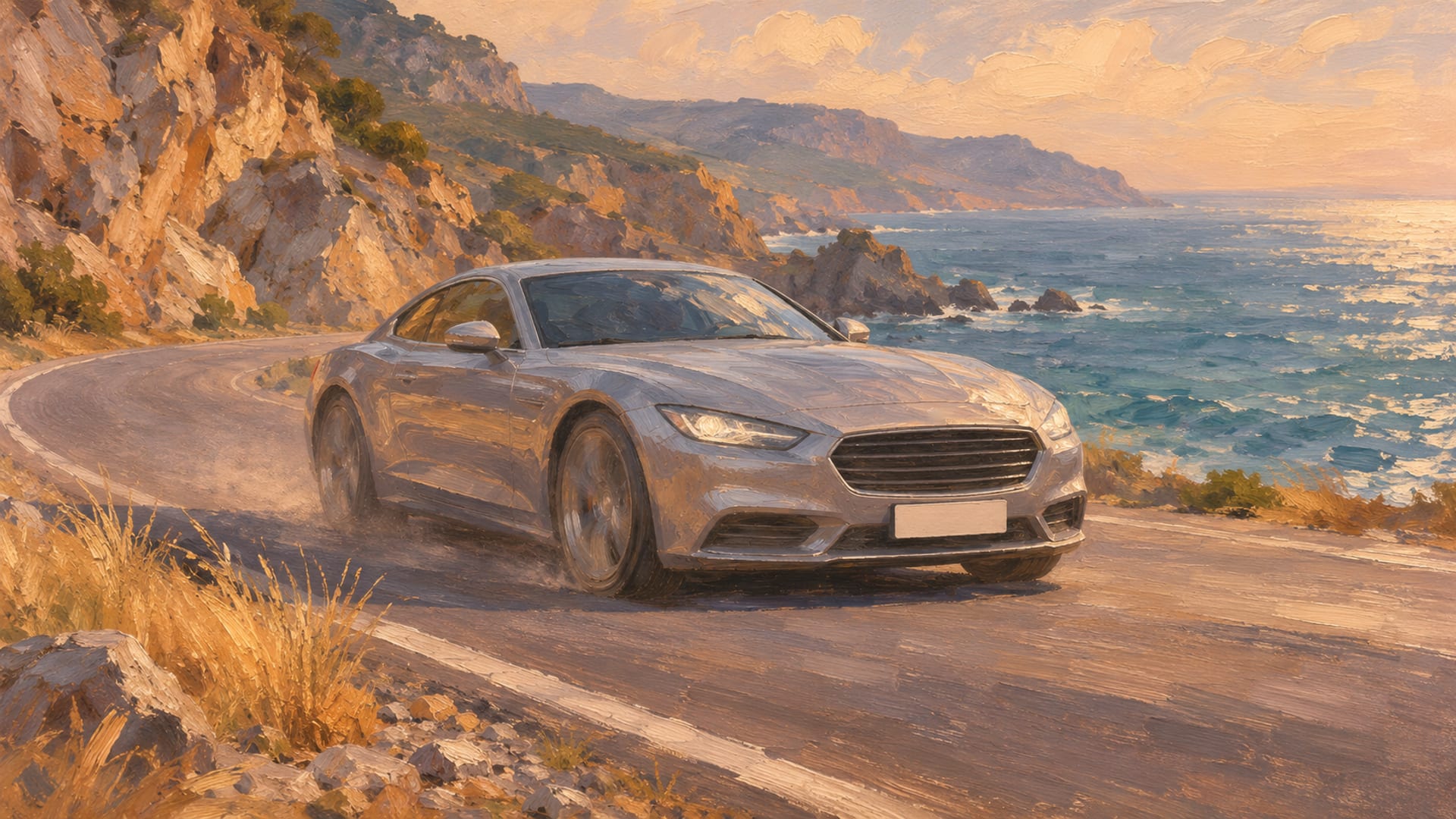
GTA 6 has Auto Drive on PS5 and Xbox Series X|S, and it drives your vehicle to a set destination while Cinematic Camera is active. Rockstar lists it under the game's accessibility features, so you can let Jason or Lucia handle the steering, braking and throttle while you watch the road.
The short version: set a waypoint, get into a vehicle and start moving, hold Down on the D-pad, press Options on PS5 or Menu on Xbox to enter Cinematic Camera, then hold Circle on PS5 or B on Xbox when the ENABLE AUTO DRIVE prompt appears.
Auto Drive is not fast travel. The car stays in the world, obeys traffic and takes the time a drive takes. It suits long scenic cruises, route previews and screenshots. For a quick trip, Paradise Taxi and RydeMe are the paid options.
Key Takeaways
Platforms
Auto Drive is in the released game on PS5 and Xbox Series X|S, which are the platforms named in Take-Two's launch announcement.
Controls
Set a waypoint, start moving, hold Down on the D-pad, press Options or Menu for Cinematic Camera, then hold Circle on PS5 or B on Xbox.
Settings
Restricted is the default, and Unrestricted allows Auto Drive in more situations with a greater risk of collisions.
Best use
It is slower than driving by hand, so it fits scenic drives and screenshots, while Paradise Taxi and RydeMe fit quick trips.
How to turn on Auto Drive on PS5 and Xbox
Everything below describes the launch version of GTA 6 on PS5 and Xbox Series X|S. Rockstar's accessibility features page, updated November 23, 2026, describes Auto Drive as automatic driving to a set destination that you enable through Cinematic Camera. The button sequence comes from launch-week guides by GamesRadar+, VGC and GTA6 House.
The order matters. Auto Drive needs somewhere to go, so the waypoint comes first. After that you need a vehicle that is moving, and only then does the Cinematic Camera step lead to the prompt.
Turn on Auto Drive
Set a waypoint
Open the map and place a waypoint at your destination.
Get moving
Enter a vehicle and start driving.
Hold Down on the D-pad
Keep it held for the next step.
Open Cinematic Camera
While holding Down, press Options on PS5 or Menu on Xbox.
Look for the prompt
ENABLE AUTO DRIVE appears on screen once Cinematic Camera is active.
Hold the button
Hold Circle on PS5 or B on Xbox until Auto Drive starts.
Adjust speed
Use the triggers to change between the three speed levels if you want a different pace.
Take control back
Hold the Disable Auto Drive button shown on screen to drive manually again.
If your controller layout or a later patch changes the prompt, follow the button the game shows you in the lower-right corner of the screen. The prompt on your screen is the one that counts, and Settings is the place to review your current controls.
Do you need to unlock Auto Drive first?
GTABase reports that no story unlock is required, so Auto Drive should be available from the start of the game as long as you have a vehicle and a destination. You can try it in the first hours rather than waiting for a mission.
What to try when the prompt does not appear
If ENABLE AUTO DRIVE does not show up, run through these checks one at a time. Each one is a condition the sequence depends on, and most missing prompts come down to one of them.
First, confirm the waypoint is set and reachable by road. Second, make sure the vehicle is actually moving when you hold Down on the D-pad. Third, confirm that Cinematic Camera is active, since Rockstar describes Auto Drive as something you enable through it. Fourth, remember that the situation matters: Rockstar's page notes the Restricted setting limits where Auto Drive can start, and launch guides describe it as tied to safer moments on the road.
Vehicle type is the other variable. Try the prompt with the car you are driving. If it appears, you are set; if it does not, switch to a different car and try again. The same goes for motorcycles and aircraft. Set a reachable waypoint, open Cinematic Camera and see whether the prompt appears, and keep your thumbs ready to take manual control either way.
Route matters too. Auto Drive follows roads, so a waypoint across open water or off the road network may not work. Pick a destination you can reach by road, and move the marker if the prompt stays away.
Can you auto drive a boat?
Launch guides mention Auto Drive working in boats and other vehicle types. The reliable way to find out is to try it: set a waypoint over water, get the boat moving, open Cinematic Camera and look for ENABLE AUTO DRIVE. If the prompt appears, hold Circle or B as usual. If it does not, steer by hand. For a boat worth testing, see our picks for boats in GTA 6.
Where to find the Auto Drive setting
Rockstar's settings guide, updated November 18, 2026, lists Gameplay, Accessibility and Camera categories in Settings. Launch guides place the Auto Drive option at Pause Menu, then Settings, then Gameplay, then Accessibility. Open it there to switch between the two modes.
Check the wording in your own game, because menu labels can shift with updates. The same menu is the right place to review anything else that changes how driving or the camera behaves, so a quick look through Gameplay and Accessibility before a long cruise costs nothing.
Restricted or Unrestricted: which mode to use
Rockstar documents two modes. Restricted is the default and is intended for safer situations. Unrestricted allows Auto Drive to start in more situations, but Rockstar says it carries a greater risk of collisions.
For a road trip along the highways, Restricted is a sensible place to leave it. Auto Drive keeps to roads, responds to traffic and can be held up by lights, other cars, collisions and obstacles, which is exactly what you want from a hands-free route when you are focused on the scenery.
Unrestricted is for the times Restricted will not give you the prompt. Launch guides suggest it for off-road routes, with a warning that road routes stay more reliable. If you switch to Unrestricted, expect more bumps and keep a finger near the button that hands control back.
Auto Drive modes
| Mode | Where it can start | What to expect |
|---|---|---|
| Restricted | Safer situations (the default) | The more cautious choice for road routes |
| Unrestricted | More situations, including riskier ones | A greater risk of collisions, so stay ready to take over |
How to stop Auto Drive and take control back
You can take the wheel back at any time. The game shows a Disable Auto Drive prompt on screen, and holding that button returns manual control. The exact button depends on your platform and layout, so read it off the screen rather than guessing.
Do this early in your first run, before you need it. Start a short trip, enable Auto Drive, then hold the disable button and confirm you are driving again. Knowing how the handover feels makes a longer cruise, or an Unrestricted run, much less stressful.
How fast is Auto Drive, and is it fast travel?
Auto Drive is hands-free route following, not fast travel. Your character stays in the vehicle and travels through Leonida along the route to your waypoint. The trip takes real driving time, and traffic, lights or an obstacle can slow it further.
Launch guides report three speed levels. L2 and R2 change the speed on PS5, and LT and RT do the same on Xbox. VGC reports that Auto Drive is slower than driving by hand, and GamesRadar+ describes the feature as suited to viewing the world and capturing footage rather than reaching a destination quickly.
That makes it a good fit when the drive is the point. If you are in a hurry, drive yourself or use one of the paid options below.
Watch it in action
Mednasah's TikTok video, The AI is driving for you in GTA VI, posted November 22, 2026, shows a map marker, Cinematic Camera, Auto Drive switching on, a camera change and the speed controls during a long journey.
Auto Drive, taxis and RydeMe compared
When you want to skip a drive entirely, the game has paid options. GTA Guide and GTABase both report that Paradise Taxi and RydeMe can skip a ride for an additional $100, subject to road access and story availability. Paradise Taxi is reported as available early, while RydeMe appears on your phone after some story progress. Use Paradise Taxi early and check your phone for RydeMe as the story moves along.
The fare for the ride itself shows in the phone or driver interface, so confirm the amount before you book. For step-by-step booking, read GTA Guide's fast-travel guide and GTABase's fast-travel guide.
Auto Drive and the other ways to get there
| Choice | What it does | Cost | Good for |
|---|---|---|---|
| Auto Drive | Drives your vehicle to a set waypoint through Cinematic Camera | Free | Scenic drives, route viewing, screenshots |
| Manual driving | You control steering, throttle, braking and route choices | Free | Speed, precision, exploring |
| Paradise Taxi | An NPC drives you to a reachable destination | Fare plus optional $100 skip | Early-game travel and hands-free rides |
| RydeMe | Rideshare from your phone once it unlocks | Fare plus optional $100 skip | Paid travel after the app unlocks |
The split is simple. Choose Auto Drive when you want to watch the drive, a taxi when you want to arrive, and your own hands on the wheel when the route needs precision.
Using Auto Drive for screenshots and long cruises
Auto Drive earns its keep on long, scenic routes. Set a waypoint across the map, switch to Cinematic Camera and let the camera cycle through its views while the car does the work. You get a preview of the route and a steady stream of moving shots without managing the wheel.
For stills, combine it with photo mode. Let the car roll through a stretch you like, then bring up the camera. Our GTA 6 photo mode post covers the camera controls, and the photo mode tips post goes through framing and lighting. If you want to share what you capture, sharing screenshots on PS5 and Xbox covers how.
Cinematic Camera cycles through its views, so a long drive gives you a run of different angles on the same car. Let a stretch play out, note which angle you like, and take the shot when the road and light line up. A coastal road at a low sun angle gives you plenty to work with, and a long straight lets you adjust the speed with the triggers so the scenery moves the way you want.
It also works well as a showcase for a build. Roll a freshly customized car down a coastal stretch and let the cinematic angles show the paint and wheels. The garage is the place to find build ideas worth filming.
Plan the route before you set the waypoint
A good drive starts on the map. Our GTA 6 map guide covers the regions, the main roads and where destinations sit, and the Leonida map page helps you pick a start and end point that makes a good cruise. If you are planning a very long route, the gas and refueling post covers stopping for fuel.
PC players and later updates
Take-Two's launch announcement names PS5 and Xbox Series X|S as the platforms for the November 19, 2026 release. Rockstar has not announced a PC release date, so the PS5 and Xbox steps above are the ones to follow. The PC countdown shows the current status.
Button prompts, restrictions and vehicle behavior can change with updates. If a later patch moves something, the on-screen prompt will show the new control, and Settings under Gameplay and Accessibility is where to look first.
If you have a scenic drive or a build worth showing off, submit a public link to the video or screenshot and it can be considered for the site.
Glossary
Tap a term to see what it means.
Auto Drive. The in-game feature that drives your vehicle to a set destination.
Cinematic Camera. A vehicle camera mode that cycles through cinematic views and is the route into Auto Drive.
Waypoint. A destination marker you place on the map.
Restricted. The default Auto Drive mode, intended for safer situations.
Unrestricted. An Auto Drive mode that allows activation in more situations, with a greater risk of collisions.
Fast travel. A paid taxi or rideshare trip that can skip the driving.
RydeMe. The in-game rideshare service you book from your phone.
Paradise Taxi. A paid taxi service that can take you to a reachable destination.
Related articles

GTA 6 bonus vehicles: how to claim, keep or get rid of them
Claim GTA 6 bonus vehicles from Pause Menu, Store, then pre-order bonus. Ultimate Edition vehicles unlock by chapter. Plan garage space before you claim.
How to get chrome rims in GTA 6
Learn how to get chrome rims in GTA 6: open Wheels at a compatible Mod Shop, check Rim Colors and Rim Style, and compare Anodized and Pro Build routes.
GTA 6 paint colors and finishes: what the Respray menu offers
Check the GTA 6 paint colors your car can use: open Cosmetics, then Respray at a compatible Mod Shop, preview the swatch and read the price before you buy.