Where to find GTA 6 car pictures and screenshots
Find GTA 6 car pictures in Rockstar's galleries, then take your own screenshots with Photo Studio or the PS5 and Xbox capture tools. Credit what you share.
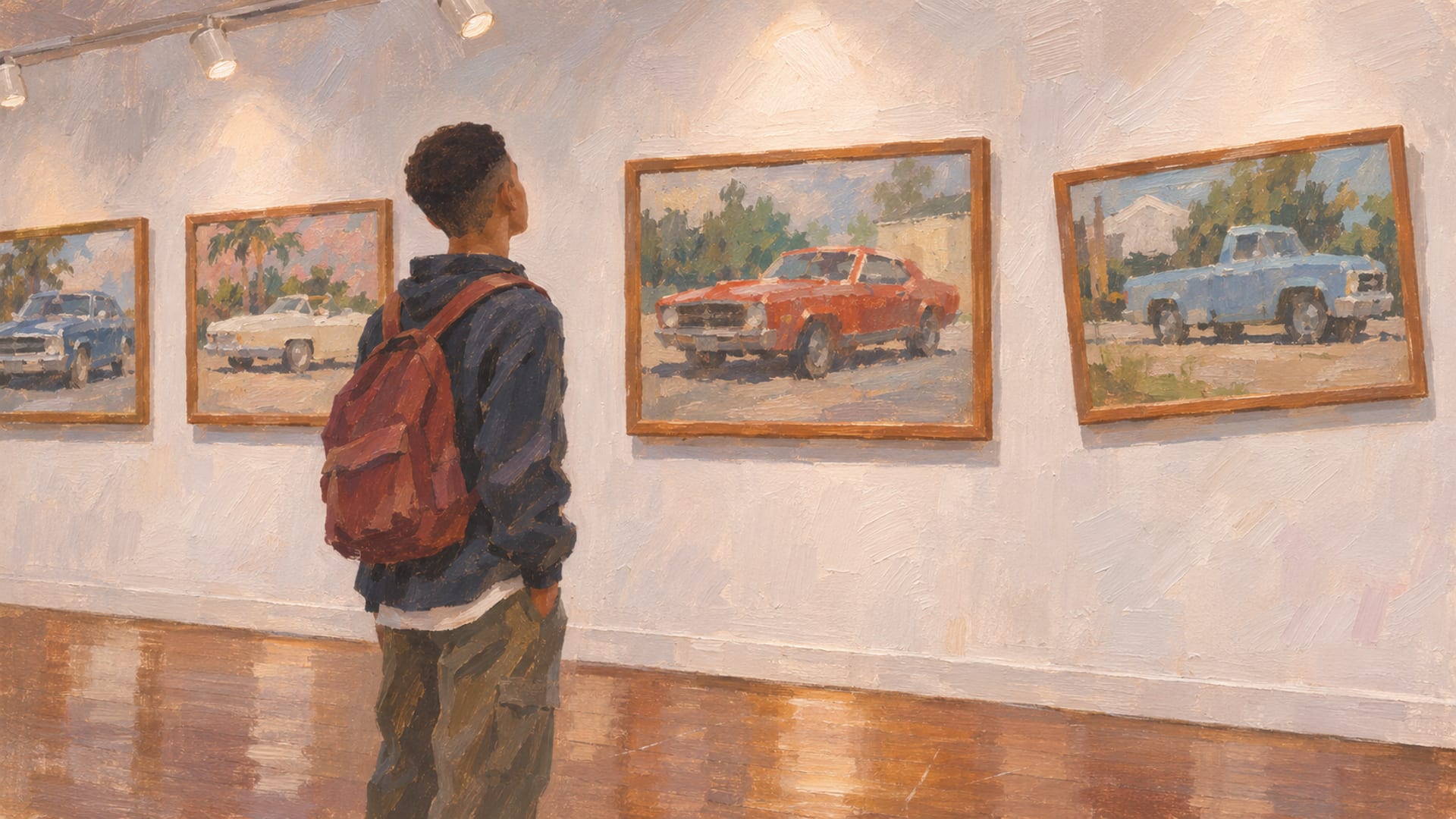
Rockstar publishes GTA 6 car images on its GTA VI media page and in a launch gallery, and Photo Studio plus the PS5 and Xbox Series X|S capture tools let you make your own.
A Rockstar image is promotional art or a screenshot that Rockstar chose and published. A photo you take yourself starts in the game, either inside Photo Studio or through your console's own screenshot button. The two end up in different places and need different credit.
GTA 6 launched on PlayStation 5 and Xbox Series X|S on November 19, 2026, and the platform information published so far covers those two consoles. Menus, shortcuts and save locations can change with updates, so check the controls on your installed version.
Key Takeaways
Start with Rockstar's pages
Rockstar's GTA VI media page and launch gallery are the places to browse published vehicle images and download collections.
Frame it in Photo Studio
Pause the game, open Photo Studio, place the camera around the car and adjust the light before you save.
Console capture makes a file
A PS5 or Xbox screenshot lands in the console's own gallery, separate from the Photo Studio save.
Credit and link
When you share a Rockstar or press image, keep the credit attached and link to the original page.
Where Rockstar publishes GTA 6 car images
Start with Rockstar's GTA VI media page. It collects screenshots, videos, artwork, wallpapers and downloadable ZIP collections in one place. As of November 19, 2026, it lists 138 screenshots, and some of them are vehicle-focused. Those show up in the main gallery, in the Ultimate Edition benefits and in the Vintage Vice City Pack.
That count and the way the images are grouped can change, so treat the number as a snapshot. If you want to see what an edition adds before you buy, the edition-specific groups on that page are the place to look. For the in-game items behind those editions, the post on Ultimate Edition customization items goes through them.
Rockstar's GTA VI page is the hub that links the media page, trailers, map artwork, edition material and launch information. Return to it if a gallery link stops working.
Looking for a car by name? The media page shows images, not a car list. For the vehicles themselves, the garage and the GTA 6 cars list are better starting points, and the post on cars shown in the trailers covers which ones appeared on screen.
Launch gallery, trailers and Rockstar's social channels
Rockstar announced a launch screenshot collection on November 5, 2026, and the launch gallery post on Newswire links to it. Rockstar also lists the gallery at its launch gallery page. It is promotional, so it shows the game the way Rockstar wants it seen, not a guide to how you take your own shots.
Trailers are a fast way to look at cars in motion. Rockstar published the launch trailer on Newswire on October 15, 2026. Its Extended Look post, dated August 27, 2026, says the footage was captured entirely from in-game footage on PlayStation 5. You can watch it on Rockstar's YouTube channel as Grand Theft Auto VI: An Extended Look, which includes vehicles and Leonida environments.
Rockstar's media page also links its social channels: YouTube, X, Instagram, TikTok and Facebook. Following those links from the media page takes you to Rockstar's own accounts.
Taking your own car photos with Photo Studio
GTA 6 has an in-game photography tool called Photo Studio. Pause with Options on PS5 or Menu on Xbox Series X|S, and select Photo Studio. Launch-day guides from Insider Gaming and Beat Cop Game report a shortcut from the pause screen: Square on PlayStation or X on Xbox.
Once you are in, you place the camera around the car yourself. Those same guides report adjustable focus, depth of field, filters, overlays and lighting, with up to five adjustable light sources. Where the game offers vehicle-light controls, they cover headlights, brake lights, turn signals and fog lights. A car parked in good light gives you a better start than one you have to rescue with filters.
The order below works for most car shots. It follows the reported launch controls, so match each step to the labels your own menu shows.
Photo Studio car shot, step by step
Confirm your setup
Check your platform and game version, since Photo Studio menus and shortcuts can change with updates.
Position the car
Park or place the vehicle somewhere with good light before you pause.
Open Photo Studio
Pause with Options on PS5 or Menu on Xbox Series X|S, then choose Photo Studio or use the Square or X shortcut.
Place the camera
Move around the car until the angle shows the paint, wheels or stance you care about.
Adjust the look
Set focus, depth of field, filters, overlays and lighting, and use the vehicle-light controls where they appear.
Hide the interface
Turn off the on-screen elements for a clean frame, then save to the in-game gallery.
For deeper camera work, the guides on GTA 6 photo mode and photo mode tips cover the controls and the habits that make a shot hold up. If you are still choosing the look of the car itself, car customization and paint jobs cover that side.
Console screenshots on PS5
A Photo Studio save stays inside the game. If you want a file you can move around, use the console's own capture. On PS5, hide the Photo Studio interface first, then press the DualSense Create button and choose Take Screenshot from the Create menu.
PlayStation's own support pages explain where it goes. The image appears under Recently created or in the Media Gallery, and from there you can share it through an available PS5 or PlayStation App destination, or copy it to USB. Sony's pages on viewing screenshots and video clips on PS5 and the PlayStation guide to sharing walk through each step.
One catch: Sony notes that Create button behavior can be customized in the console settings. If your button press does something different, check your PS5 controller settings first.
Console screenshots on Xbox Series X|S
On Xbox, hide the Photo Studio interface, then press the Xbox button to open the guide. Use the screenshot command shown under Capture & share. Current Xbox capture guidance commonly uses the Y button for a screenshot, but the guide on your console shows the commands that apply to your setup, so follow what it displays.
The file goes to your Xbox capture gallery. From there, you can use the Xbox app or the sharing options your console offers. Because the exact Xbox sharing options vary by console and app version, confirm them in the Capture & share menu and in Xbox Support's current capture guide.
Snapmatic Help also has a launch-day walkthrough for sharing GTA 6 screenshots. It is an independent guide, not a Rockstar manual, and it covers Photo Studio, hiding the interface, PS5 and Xbox capture, and moving screenshots to a phone. For the full route from console to social feed, the post on sharing GTA 6 screenshots from PS5 and Xbox goes step by step.
Where each kind of image is saved
The most common mix-up is looking for a Photo Studio shot in the console gallery, or the other way around. Photo Studio saves an in-game image, while a console screenshot saves the visible screen to the console's capture library. They are different files in different places.
The table below shows where each kind comes from and where to look for it.
Where each kind of GTA 6 image comes from and ends up
| Image type | Where it comes from | Where it is saved |
|---|---|---|
| Rockstar promotional screenshot | Rockstar media page or launch gallery | Rockstar's gallery or download collection |
| Photo Studio image | In-game Photo Studio | In-game gallery |
| PS5 screenshot | Create button, Take Screenshot | PS5 Media Gallery |
| Xbox screenshot | Xbox guide, Capture & share | Xbox capture gallery |
| Credited press image | A publisher's article or gallery | The publisher's page |
The table does not rank these by sharpness or quality. Resolution and quality across systems would need a defined test to compare. For finding your files, what matters is knowing where to look.
Credited galleries and sharing with credit
Community archives can make browsing easier. VI Creator Lab's vehicle archive groups vehicle images by category and lists context, dimensions, origin and credit. Its filters include cars, convertibles, pickups, trucks, vans, motorcycles, boats, helicopters and planes. It credits Rockstar Games and Take-Two Interactive for the files they published and labels press screenshots separately.
Use an archive like that as an index and a viewing gallery. Follow the listed credit back to the original Rockstar or publisher page before you share anything, because that page is the one worth linking.
When you do share, a few habits keep you on solid ground. Link to the original Rockstar gallery or Newswire post whenever you can. Keep the creator or publisher credit attached to the image. Leave watermarks in place, and do not alter an image to imply you made it. A promotional render is not your own screenshot, so say which one you are posting.
For what you may reuse from a given Rockstar image, go by Rockstar's own download or sharing options. A link with visible credit is the safe route, and it is how images are shared here: this site links to them and does not host screenshots, videos or files from users or third parties.
What to leave out of your shares
Skip leaked or datamined material and footage from leaked copies, even when it comes with a good-looking car. Skip uncredited reposts, mirrors and shortened links too, since a link you cannot read tells the reader nothing about where it leads. The same goes for unknown executables and downloads that promise extra images.
If you are not sure where an image came from, leave it out until you can name the origin. A Rockstar image has a Rockstar page behind it, and a press image has a publisher page. An image with no origin attached can wait.
Questions about mods or PC come up around screenshots too. Rockstar's launch information covers PS5 and Xbox Series X|S, and it does not establish a PC version, a PC date or PC requirements. For PC status, see the PC countdown and the post on whether GTA 6 is coming to PC; the mod rules explain what Rockstar's guidelines allow.
Questions players ask about GTA 6 car images
Where are Rockstar's own GTA 6 screenshots?
Rockstar publishes them on its GTA VI media page and in its launch gallery on Newswire. The media page also offers downloadable ZIP collections. Rockstar's social accounts post new images as well.
Are console screenshots different from Photo Studio photos?
Yes. A Photo Studio photo is saved to the in-game gallery, while a PS5 or Xbox screenshot goes to the console's own gallery. If a photo seems missing, look in the other place before you retake it.
Can I use a Rockstar image on my own page?
A link and a visible credit are the safer route; for reuse beyond that, follow Rockstar's own download or sharing options. Point to the original Rockstar gallery or Newswire post. Do not present promotional art as your own screenshot.
Can I take screenshots without Photo Studio?
Yes, the console capture tools work on their own. On PS5, use the Create button and Take Screenshot. On Xbox, use the guide's Capture & share screenshot command.
Does anything here apply to PC?
The platform information published so far covers PS5 and Xbox Series X|S only, with no PC version or PC requirements announced. Check Rockstar's GTA VI page for any later platform announcement.
Next steps for your car shots
With a place to find published images and two routes for your own, you can look at cars from plenty of angles. The posts on how many cars are in GTA 6, flying cars, muscle, classic, luxury and electric cars and taking and stealing street cars cover which cars are worth framing.
If you post a build or a photo to YouTube, Instagram, Reddit, X or Bluesky, you can send the link through the submit page and it will be reviewed for the site. The platform keeps the media, and the credit stays with you.
Glossary
Tap a term to see what it means.
Photo Studio. GTA 6's in-game photography tool, reported by launch-day guides to open from the pause menu.
Console capture. A screenshot made by the PS5 or Xbox system tools rather than by the game.
Media Gallery. The PS5 location for screenshots and video clips.
Capture & share. The Xbox system tools for taking and sharing screenshots and clips.
Newswire. Rockstar's news site, where it posted the launch gallery, the launch trailer and the Extended Look.
Launch gallery. The Rockstar screenshot collection announced on November 5, 2026.
Snapmatic. A photography and social-feed term from earlier GTA games, not a confirmed GTA 6 feature.
Credit line. The creator or publisher name kept with a shared image, with a link to the original page.
Related articles
How to get your car out of the impound in GTA 6
Get your car out of the impound in GTA 6 by finding the marked police lot on the map's Personal index, or request delivery through Scooter Bros.
GTA 6 garages: locations, space and storage
Find GTA 6 garage locations, the slots reported at launch, story and edition unlocks, and how to store and register a car on PS5 or Xbox Series X|S.
Muscle, classic, luxury and electric cars in GTA 6
Start with the style you want. See the GTA 6 muscle, classic, luxury and electric cars, where to find them, which mod shop works on each and how EVs charge.