How to record GTA 6 clips for YouTube on PS5 and Xbox
Record GTA 6 clips on PS5 or Xbox Series X|S with the built-in capture tools, move them to a phone or computer, then upload through YouTube Studio.
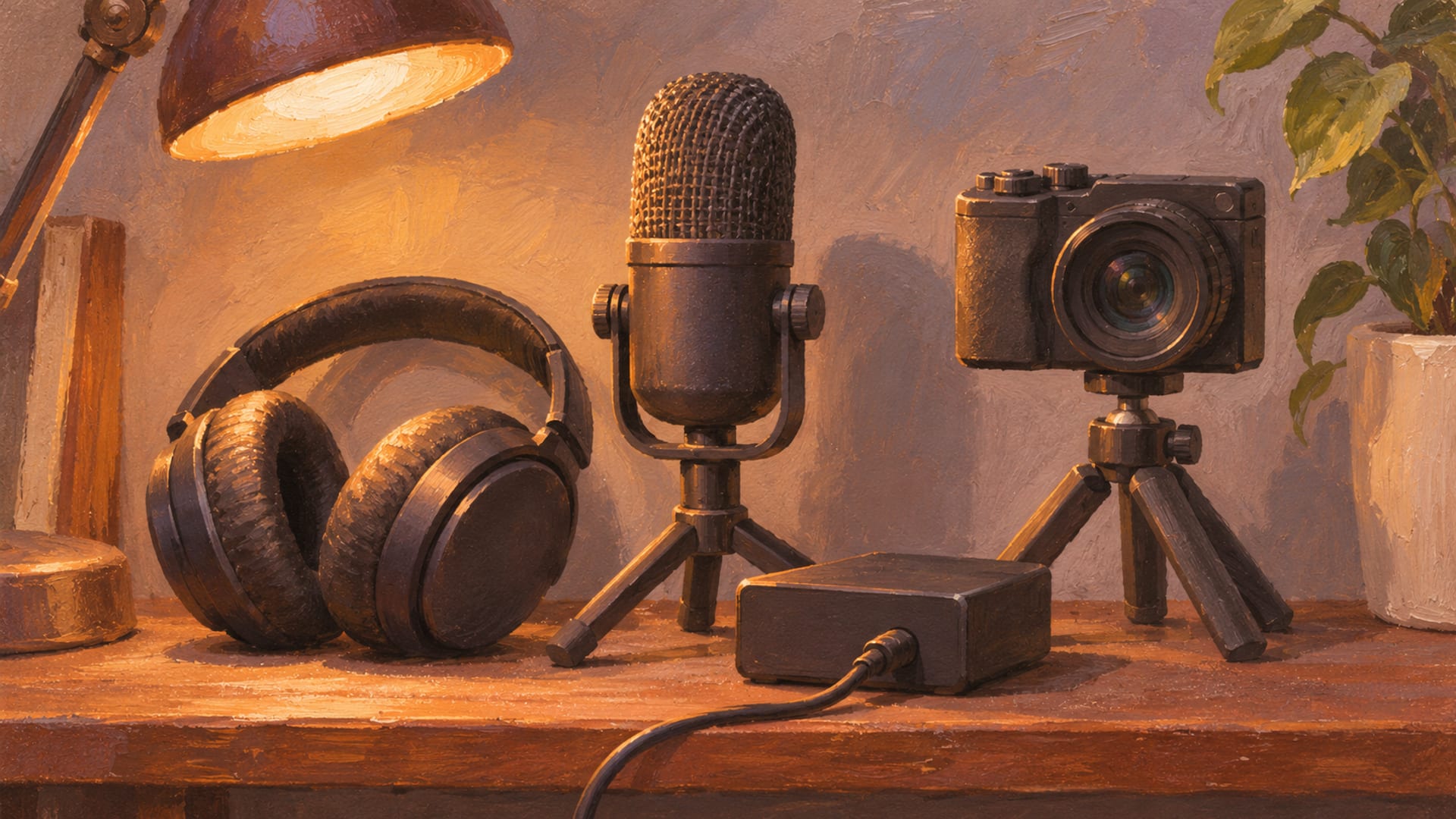
On PS5 and Xbox Series X|S, the console's built-in capture tools record a GTA 6 clip, a phone or computer moves the file off the console, and YouTube Studio publishes it. A car build, an outfit reveal or a photo-mode sequence needs no extra hardware to get started.
The PS5 route runs through the Create button and Media Gallery. The Xbox route runs through Capture & share and the Captures app. Menu names and limits can shift with console updates, GTA 6 patches and app updates, so confirm the labels on your own console before a long session.
Rockstar's posting policy sets the boundary for what goes online. Take-Two generally does not object to non-commercial fan use, while leaked footage, major spoilers and isolated cinematics are off the table, and the policy gives no general permission to earn money from the footage.
Key Takeaways
Built-in tools
PS5 and Xbox Series X|S both record GTA 6 clips without a capture card, then a phone or computer carries the file to YouTube Studio.
PS5 limits
A new recording runs up to 1 hour, Save Recent Gameplay keeps 15 seconds to 1 hour, and PlayStation App captures stay available for 14 days.
Xbox backup
Back up Xbox clips to OneDrive or external storage, because Xbox Wire announced a 90-day retention period for captures kept on Xbox Network.
Posting rules
Rockstar's policy covers occasional non-commercial fan use and does not promise monetization, so skip spoilers, leaks and isolated cinematics.
Pick a route before you record
Three routes cover most build videos. A short clip suits a single moment, like a paint reveal or a finished car rolling out of the garage. A longer recording suits a full walkaround or a start-to-finish build. A live broadcast suits a PS5 player who wants to show a build as it happens.
A capture card is a fourth option for creators who want more control. It adds a computer, cables and recording software, so it makes more sense once the built-in tools stop being enough. The table sets the routes side by side.
Console capture routes for YouTube
| Route | What it gives you | Limits to know |
|---|---|---|
| PS5 built-in capture | Create button, Save Recent Gameplay, Start New Recording, up to 1 hour | PlayStation says some scenes cannot be captured; PlayStation App transfer skips clips of 3 minutes or longer and 4K clips |
| Xbox Series X|S built-in capture | Capture & share controls and the Captures app | Exact labels and retention settings can change with updates |
| PS5 direct broadcast | Link YouTube, choose Broadcast, press Go Live | A live stream, not an edited upload |
| Capture card | HDMI passthrough, a PC or Mac, software such as OBS Studio | Needs capture hardware, cables, a computer and software |
GTA 6 is available on PS5 and Xbox Series X|S, according to Rockstar's launch announcement. Everything below covers those two consoles. Standard and Ultimate Edition owners follow the same posting policy, because console edition does not change Rockstar's rules.
Record on PS5 with the Create button
Press the Create button on the DualSense controller. The Create menu gives you Start New Recording, Save Recent Gameplay, Capture Options and Media Gallery, as laid out on PlayStation's capture support page.
The limits matter for planning. Start New Recording runs from the moment you begin and can last up to 1 hour. Save Recent Gameplay keeps anything from the last 15 seconds up to 1 hour, which is handy when you drive past a perfect shot and only realize it afterward. PlayStation also says some scenes cannot be captured, so review a clip before you count on it.
Capture Options is where you set resolution, video format, microphone audio and voice-chat audio. Set those before a build session, not after. A clip recorded with the wrong audio settings cannot be fixed by an upload setting later.
Record a PS5 clip
Press Create
Press the Create button on the DualSense controller while GTA 6 is running.
Choose a mode
Pick Start New Recording to capture from this point forward, or Save Recent Gameplay for the last 15 seconds to 1 hour.
Stop the recording
End a new recording from the Create menu when the sequence is done.
Find the clip
Open Media Gallery, where the finished clip is stored.
Record on Xbox Series X|S with Capture & share
Open the Xbox Guide and choose Capture & share. From there you can use the recording command your console shows, such as Record what happened or Start recording, to save a recent clip or begin a new recording. Xbox's capture support page and its controller Share button page hold the current button mappings.
Exact maximum recording lengths and Share button mappings can vary, so open the Capture & share settings on your console and follow the labels it shows. One creator video, How to Record 1 Hour Game Clips with Your Xbox Series X|S (No Capture Card) on YouTube, demonstrates short clips, longer recording and a no-capture-card workflow. Treat it as one creator's demonstration, not a Microsoft rule, and check its menu names against your own console.
Finished clips land in the Captures app. Back up the ones you plan to keep. Xbox Wire announced in 2023 that captures stored on Xbox Network are deleted after 90 days, and it pointed players to OneDrive or external storage through My games & apps > See all > Apps > Captures, per Xbox Wire. That policy is from 2023, so recheck it if you are planning a long archive.
Move the clip to a phone or computer
A clip has to leave the console before YouTube Studio can take it. On PS5, the PlayStation App can receive gameplay videos under 3 minutes that are not in 4K, according to PlayStation's PS App captures page. The console must be linked to the app, and automatic uploads need the PS5 to stay connected to the internet in Rest Mode. Supported captures remain in the app for 14 days, so download anything you want to keep before then.
That route fits a quick build teaser. It does not fit a long walkaround or a 4K clip. For those, open Media Gallery and copy the file to a USB drive, then plug the drive into a computer. PlayStation App transfer may also depend on your country or region, so confirm it is available for your account.
Xbox players have a similar choice. Open the Captures app, back the clip up to OneDrive or external storage, then download the file on a computer or phone. Xbox-to-YouTube direct upload may not be available on your console, so the backup route is the dependable path. A phone is fine for a short clip, while a computer is easier if you plan to trim or add a thumbnail.
Upload through YouTube Studio
Once the file is on a phone or computer, the steps are the same for either console. YouTube's upload help page covers them in full.
Upload to YouTube Studio
Sign in
Open YouTube Studio and sign in to the channel you want to post on.
Start the upload
Select Create, then Upload videos, and choose the video file.
Add details
Write the title and description, then add a thumbnail, playlist, audience setting, age restriction, language and captions as needed.
Review checks
Read the copyright checks YouTube shows before you go further.
Choose visibility
Pick Private, Unlisted, Public or a scheduled release.
Publish
Save or publish the video.
YouTube says titles can run to 100 characters and descriptions to 5,000. A build title works best when it names the car or look and the game, and a description can credit the parts, the location on the Leonida map and any creators you borrowed an idea from. Uploading first as Private or Unlisted gives you a chance to watch the clip through once before anyone else sees it.
Go live from PS5 instead
A PS5 can broadcast straight to YouTube. Link YouTube to your PlayStation account, press Create, select Broadcast, choose YouTube, enter the broadcast details and select Go Live. PlayStation's Broadcast page and its YouTube setup page walk through the linking. Some services ask for account verification or two-factor authentication first, so set that up before the day you want to stream.
A broadcast is a live stream, not necessarily a finished edited upload. It suits a build session where you talk through choices as you make them. If you want a trimmed video with a thumbnail and a clean opening, record a clip and upload it instead.
Party members should know when their voices will be included in a broadcast. A quick message before you press Go Live covers it.
When a capture card is worth it
A capture card copies the console's HDMI signal to a computer while passing the picture on to your TV or monitor. The setup, as Elgato's capture-card setup page describes it, sends the console's HDMI output into the card, runs the card's HDMI output on to the TV or monitor, and connects the card to a PC or Mac. Recording software, either the manufacturer's own or OBS Studio, does the capturing.
The extra work buys control. A capture card is useful for longer recordings, overlays, multiple audio sources, scene changes and live commentary. Hardware requirements vary by model, so check your card's own instructions.
PS5 setups may need HDCP turned off, because that copy-protection signal can stop a card from receiving the PS5's video. Elgato notes that Xbox game capture generally does not need an HDCP toggle. If you only post short build clips, the built-in tools are enough, and a card can wait until your videos need it.
Audio, spoilers and blocked scenes
Review each clip before it goes public. Watch for story moments that reveal too much, scenes the console refused to capture, copyrighted music playing in the background and voices you did not mean to include. Our guide to GTA 6 radio and music shows how to turn the radio off before you record.
On PS5, Capture Options controls whether your microphone and voice chat are recorded. Other players' voices belong to them, so ask permission before publishing a clip that includes party chat. On Xbox, check the microphone and party-chat settings on your console before you record.
If a sequence is missing or blocked, cut it from the video and record a different angle. Test a short clip after each major console or GTA 6 update, since audio routing, resolution and blocked scenes can change. Rockstar's launch announcement also asks players to be mindful when openly sharing spoilers, which is a good habit for titles and thumbnails as well as the footage.
Rockstar's rules for posting gameplay
Rockstar's posting policy says, "Generally, Take-Two Interactive does not object to our fans using materials for non-commercial uses." It defines non-commercial use as not making money through the game footage and not using it to promote a product or service. Take-Two can still ask for a video to be removed.
The policy warns against several things. Pre-release leaked footage and early unboxing footage are on the list. So are videos that reveal the ending, major story reveals or isolated cinematics, and isolated in-game entertainment such as television shows or comedy performances. It also names cheats, illegitimate money or items, exploits, account selling, GTA Online modding tools, unauthorized ports or modifications, and anything that breaks Rockstar's Terms of Service.
Nothing in that policy hands out a general permission to earn money from footage. If you plan a monetized, sponsored or story-heavy video, recheck Rockstar's copyright and legal guidance first, since the policy was last updated January 10, 2025 and may have changed since. The site's own mod rules page covers the single-player modding boundaries it follows.
Questions about recording and uploading
These short answers cover common follow-up questions once the basic workflow is in place.
Can I record GTA 6 without a capture card?
Yes. PS5 and Xbox Series X|S both have built-in capture tools. A capture card adds PC-based control and production features, and you do not need one to stream from a PS5 either, since the console has its own YouTube broadcasting.
Can I record GTA 6 on PS4 or Xbox One?
Rockstar's GTA 6 platform listing names PS5 and Xbox Series X|S. You can check the current listing on Rockstar's GTA VI page.
Why is my PS5 clip missing from the PlayStation App?
The app supports clips under 3 minutes that are not in 4K, and captures stay available for 14 days. A longer or 4K clip needs Media Gallery and a USB drive instead.
Can I use leaked GTA 6 footage?
No. Rockstar's policy says leaked pre-release footage will be taken down, and it asks creators to avoid major spoilers and isolated cinematics.
Plan the clip around the build
A repeatable workflow starts before you press record. Decide what the video is about, such as one paint job, one wheel swap or one outfit, and plan a short sequence that shows it. Start with the whole car or character, then move in on the details.
Record a few seconds longer than you think you need at each end. Save Recent Gameplay is forgiving when a good moment happens by surprise, but a planned shot is easier to trim cleanly. For ideas on what to show, the site covers GTA 6 car customization, paint jobs, outfits for Jason and Lucia, and locations on the Leonida map.
Photo mode is a different tool for stills. If you want screenshots to sit beside your video, the posts on GTA 6 photo mode, photo mode tips and sharing GTA 6 screenshots from PS5 and Xbox cover framing and sharing.
Next steps for your first clip
Record one short clip of a build in the garage or a look from the wardrobe, move it to your phone or computer, and upload it as Unlisted to test the whole path. Once it plays the way you want, post it publicly and send the link through Submit, where each submission is reviewed before it appears on the site.
Glossary
Tap a term to see what it means.
Capture. A saved screenshot or gameplay video created by the console.
Recent gameplay. Footage the console has temporarily recorded before you save it.
Broadcast. A live gameplay stream sent to a linked service such as YouTube.
Capture card. Hardware that copies a console's HDMI signal to a computer while passing the signal to a display.
Passthrough. The HDMI output from a capture card that sends the picture on to a TV or monitor.
HDCP. A copy-protection signal that can stop a capture card from receiving a PS5 video signal.
YouTube Studio. YouTube's upload and publishing dashboard.
Visibility. YouTube's Private, Unlisted, Public or scheduled publishing options.
Related articles
Does GTA 6 Have Photo Mode? How to Use Photo Studio
Yes, GTA 6 has Photo Studio on PS5 and Xbox Series X|S. Open it from the pause menu with Square or X, frame the shot and hide the UI before you capture.
GTA 6 photo mode tips for better screenshots
GTA 6 photo mode: Open Photo Studio from the pause menu for planned shots. Frame with the grid, set depth of field, add light layers, choose Save Photo.

How to take and share GTA 6 screenshots on PS5 and Xbox
GTA 6 screenshots on PS5: press Create, choose Take Screenshot. On Xbox: press Share. Move captures to a phone with the PlayStation App or Xbox mobile app.